Every little tool,
one notch away.
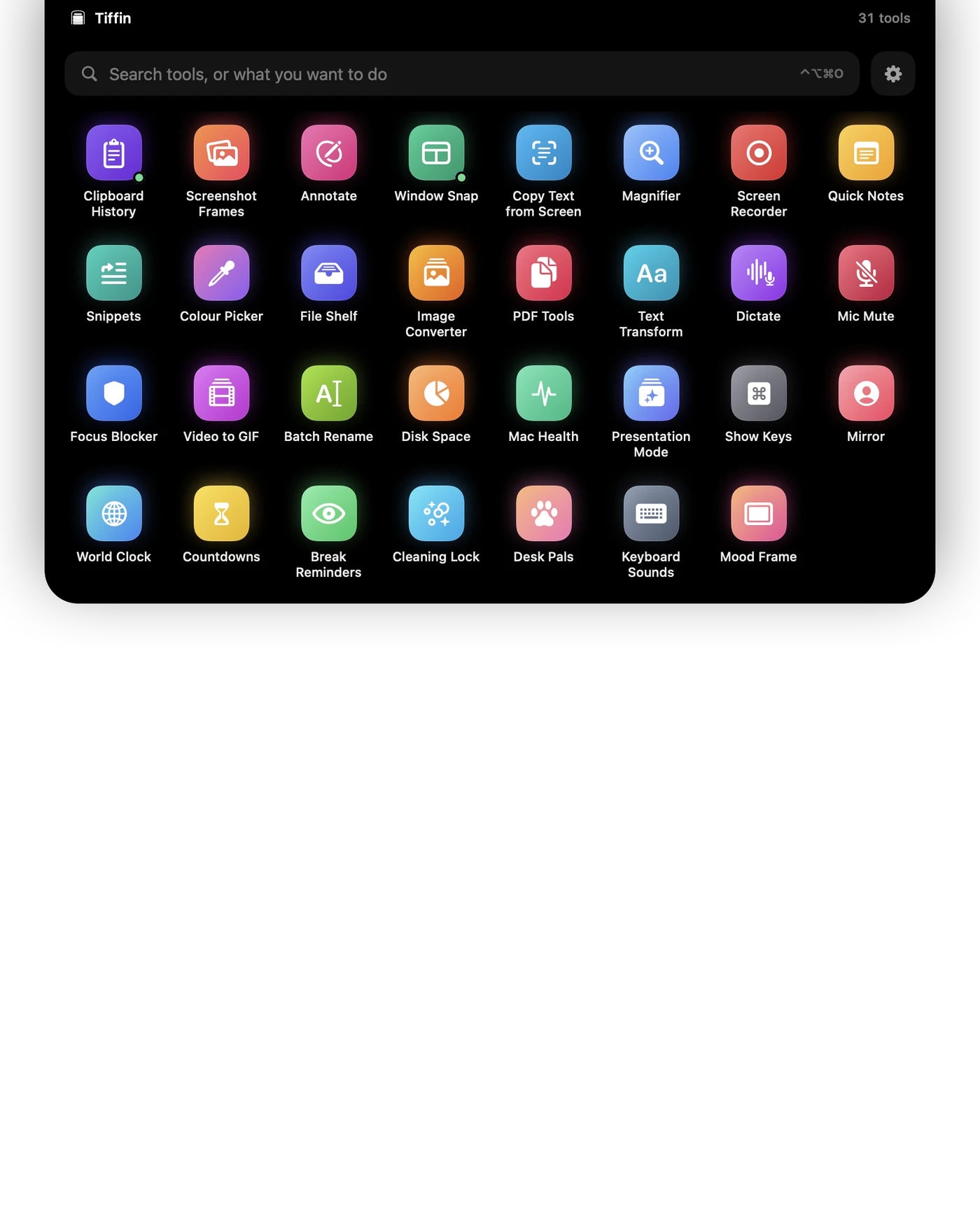
Point at the notch and Tiffin drops down: clipboard history, screenshot frames, window snapping and 26 more, the most useful first. Rest on one to see how it works. Click to open it.
- 🔒 Secure checkout by Gumroad
- Pay once, keep it
- No account
- Works offline

How it works
Point, rest, click.
No dashboard of switches to learn. Tiffin waits in the notch until you want it.
- 1
Point at the notch
Tiffin drops down with every tool, the most useful first. Or click its menu-bar icon, or press ⌃⌥⌘O. Type to search.
 2
2Rest on a tool
A bar fills under the icon, then a preview plays: the tool's real screens and what it does. Move to another icon and the preview follows.
 3
3Click to open
The island tucks itself away and the tool opens. Tools that work in the background, like keyboard sounds, switch on.
Tour
25 seconds, start to finish.
Point at the notch, rest on a tool to see it, move to another, click to open. Every picture in it is drawn by the app itself.
 Clipboard⌃⌥⌘V
Everything you copied, one shortcut away.
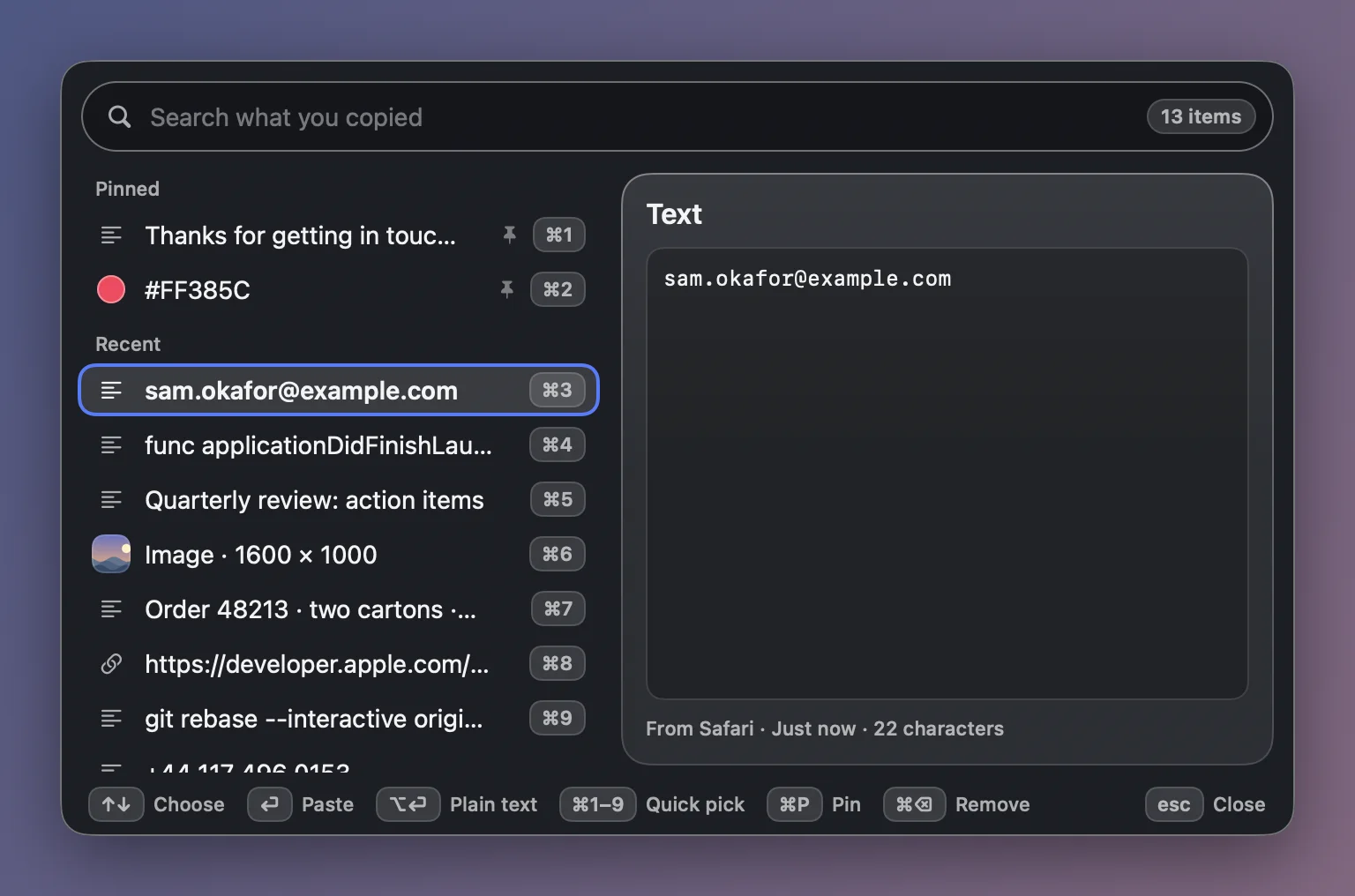
Clipboard History keeps what you copy so you can paste it again tomorrow. Search it, pin the things you paste every day, and pick any of the last nine without reaching for the mouse.
- Search, pin, and ⌘1 to ⌘9 for the last nine
- Text, links, colours, files and pictures
- Paste as plain text when formatting gets in the way
 Screenshots
Frame it, mark it up, share it.
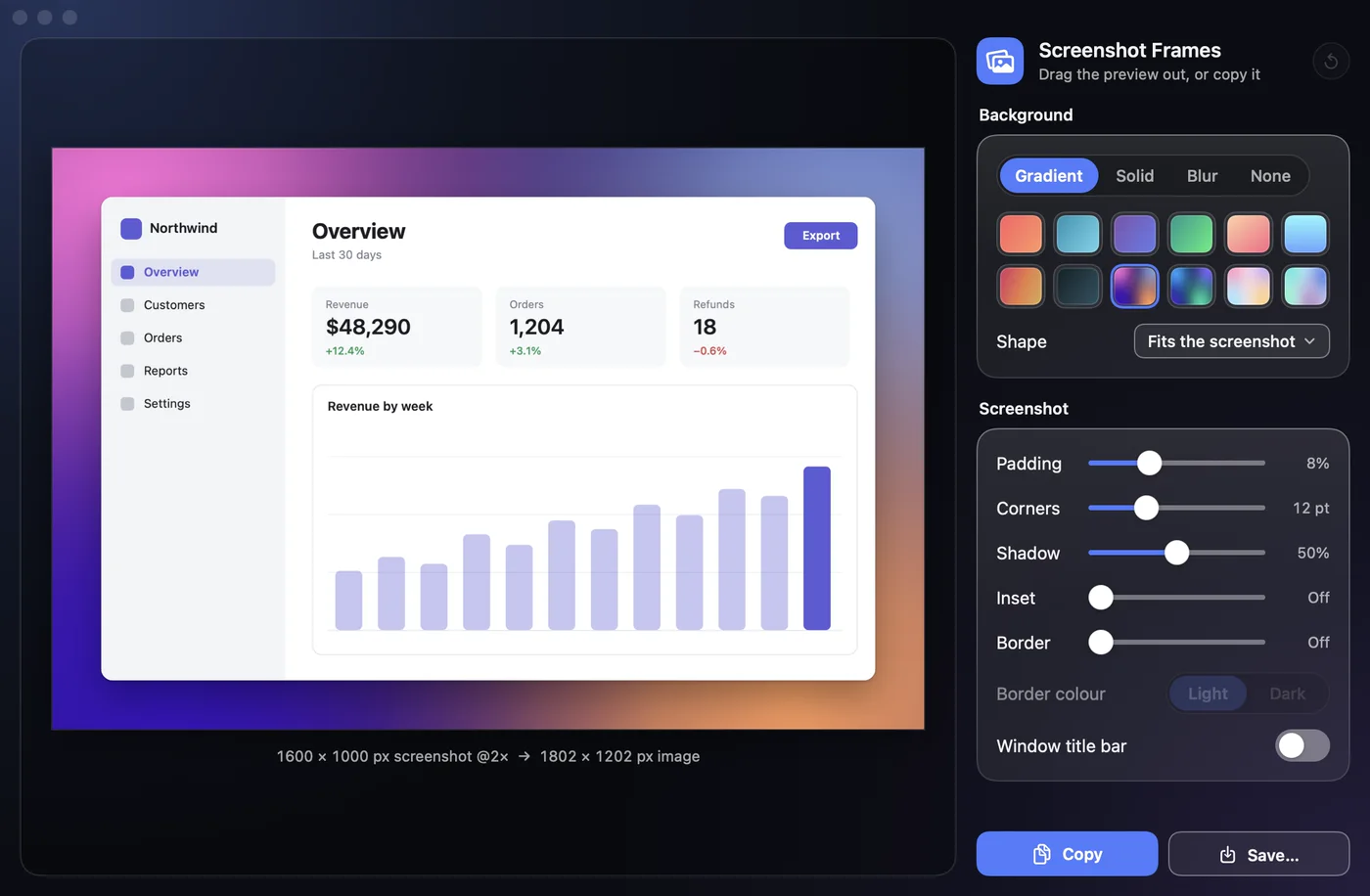
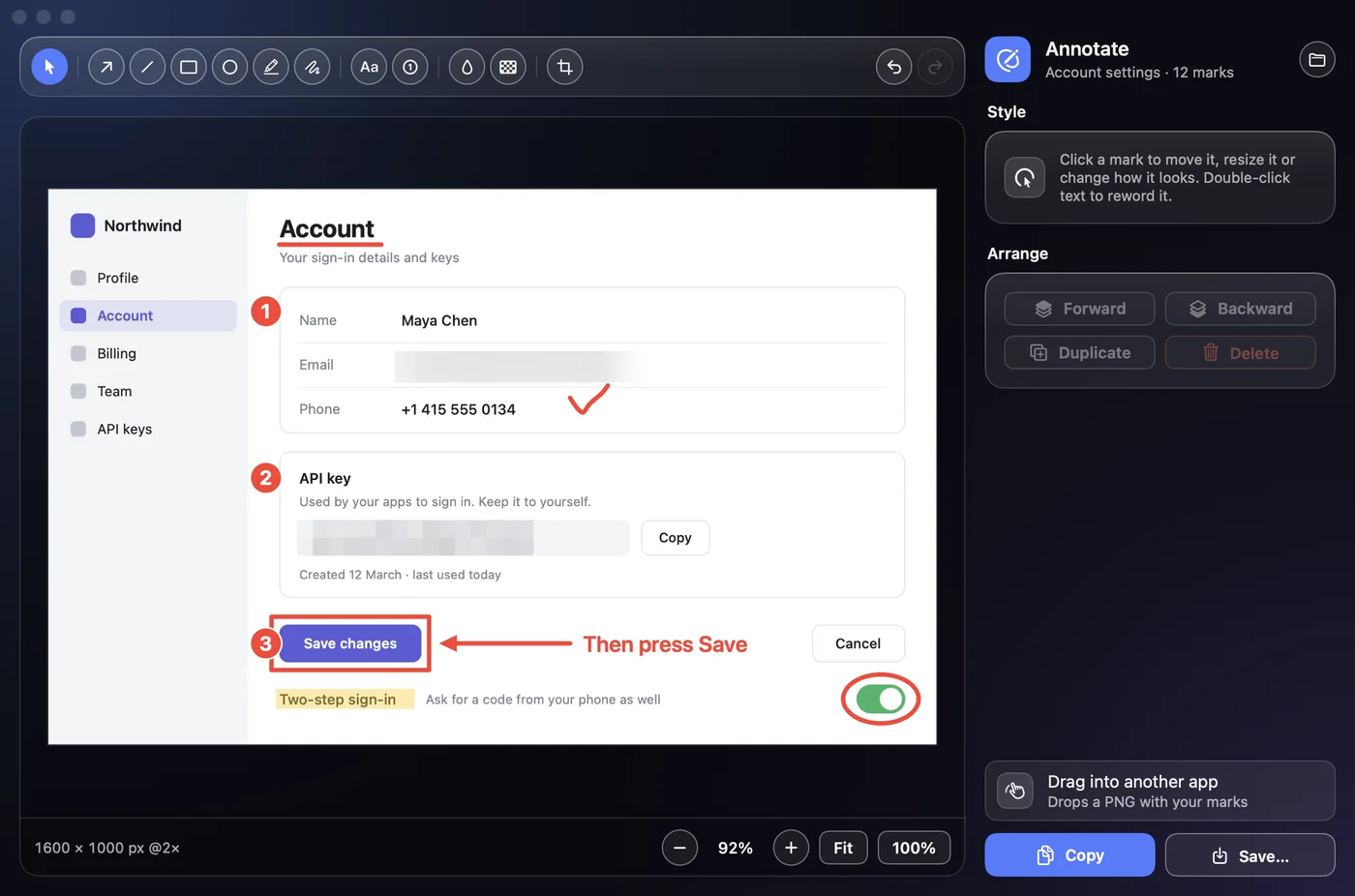
Screenshot Frames puts any screenshot on a gradient, a colour or a blur, with the padding, corners and shadow you choose. Annotate adds arrows, numbered steps and text, and blurs what shouldn't be seen.
- Gradient, solid, blurred or see-through backgrounds
- Arrows, steps, text, highlighter, blur and pixelate
- Copy it straight to the clipboard, or save a file
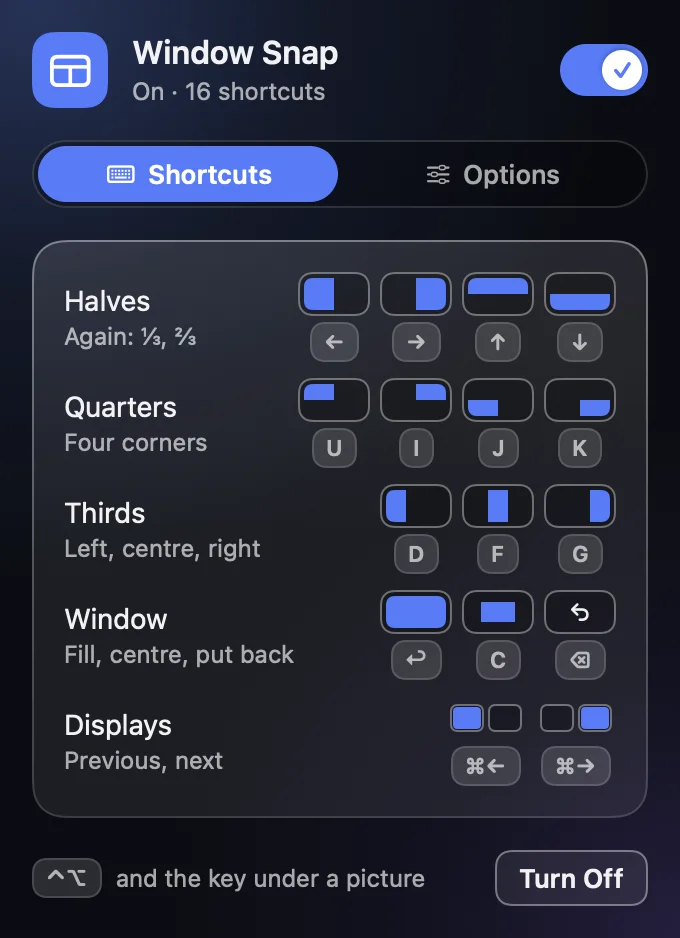
 Window Snap⌃⌥ + a key
Tidy windows without the mouse.
Send the window in front to a half, a quarter or a third of the screen with one key, fill the screen, centre it, or move it to your other display.
- Halves, quarters and thirds with ⌃⌥ and an arrow or letter
- Fill, centre, or jump to the next display
- Changed your mind? ⌃⌥⌫ puts it back
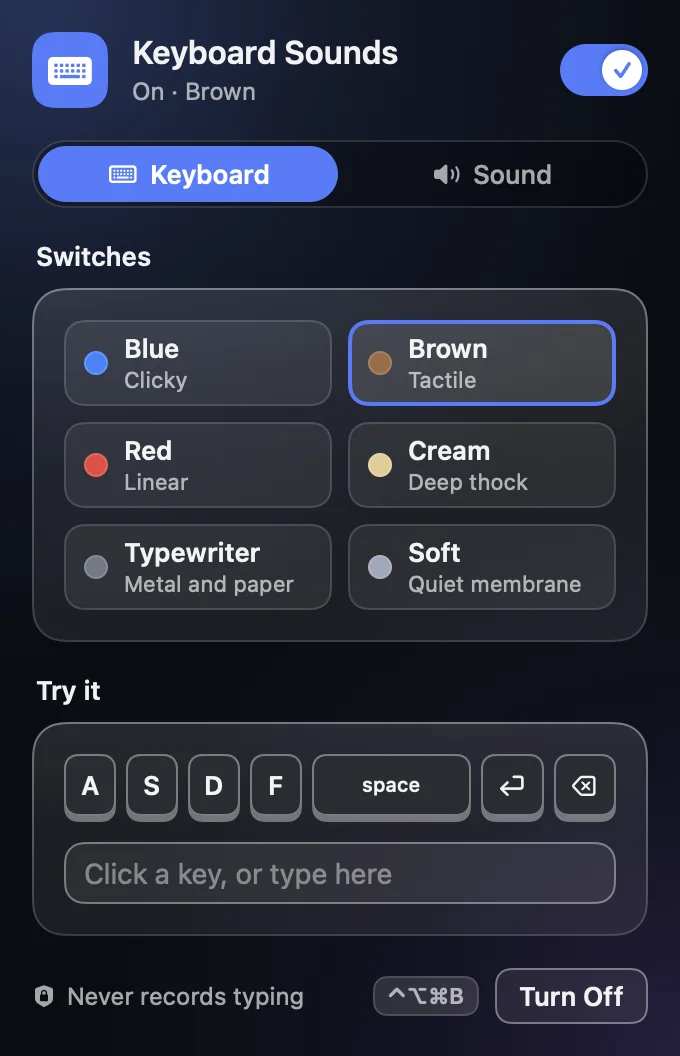
 Sounds and moods⌃⌥⌘B
Every key, satisfying.
Keyboard Sounds gives your typing the sound of a mechanical keyboard. Mood Frame wraps the screen in an animated glow, from aurora and rain to sakura and synthwave.
- Six switch styles, from clicky Blue to a soft membrane
- Never records which keys you press
- Fourteen moods for Mood Frame, with sound if you like
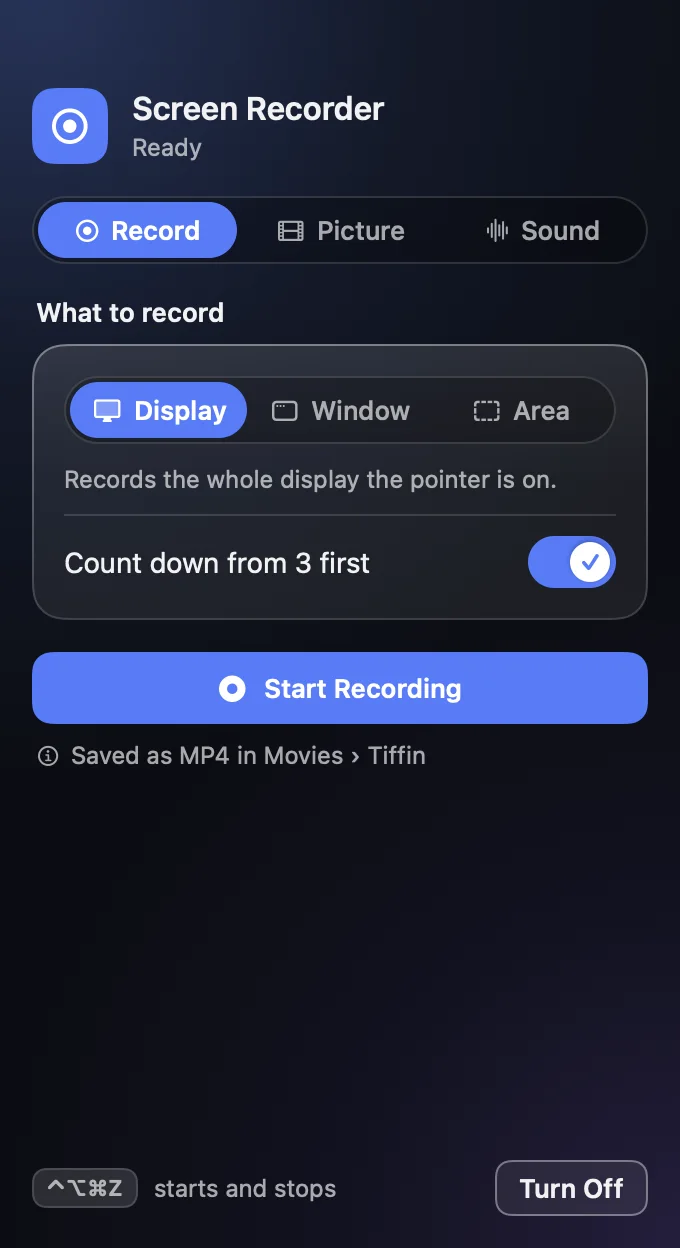
 Screen Recorder⌃⌥⌘Z
Record the screen in one press.
Record the whole display, one window or just an area. A short countdown gives you a moment to get ready, and the video lands in your Movies folder.
- Display, window or area
- A three-second countdown, and your mic if you want it
- Saved as MP4 in Movies › Tiffin
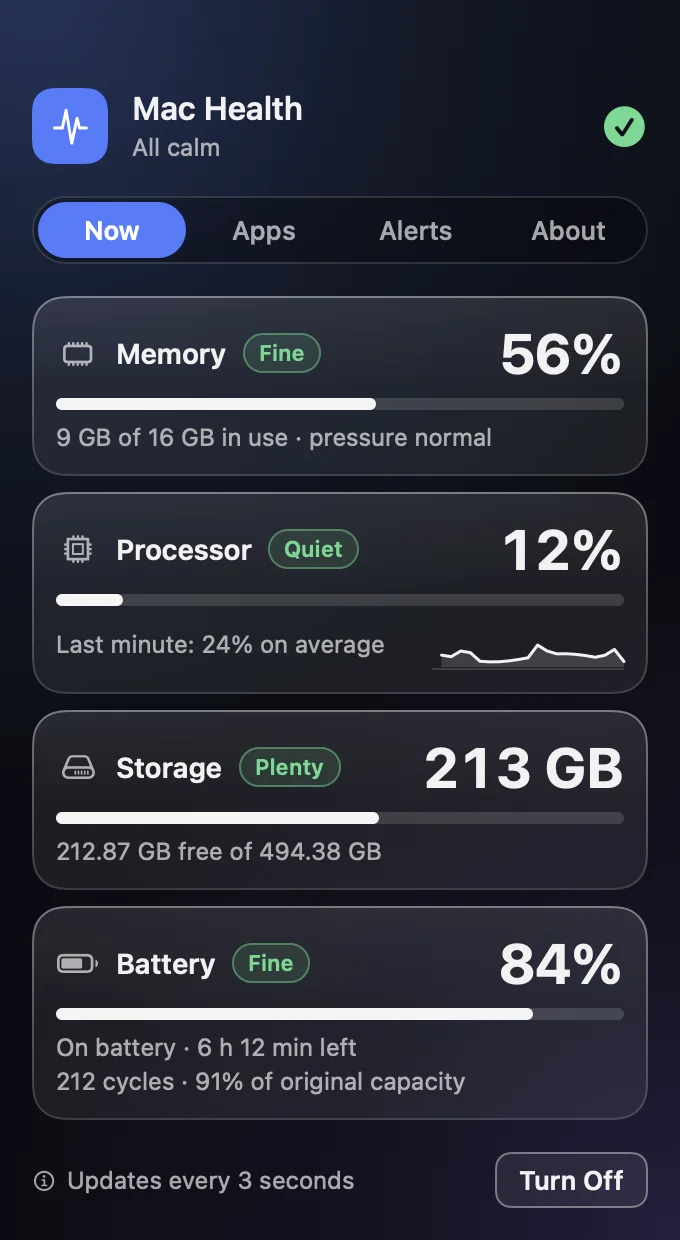
 Mac Health
Is your Mac doing all right?
Memory, processor, storage and battery, in plain words instead of graphs. See which apps are busiest, and get a nudge before things get tight.
- Memory, processor, storage and battery at a glance
- Which apps are using the most right now
- Battery cycles and how much capacity is left
 Focus
Focus
Do the work, then the internet.
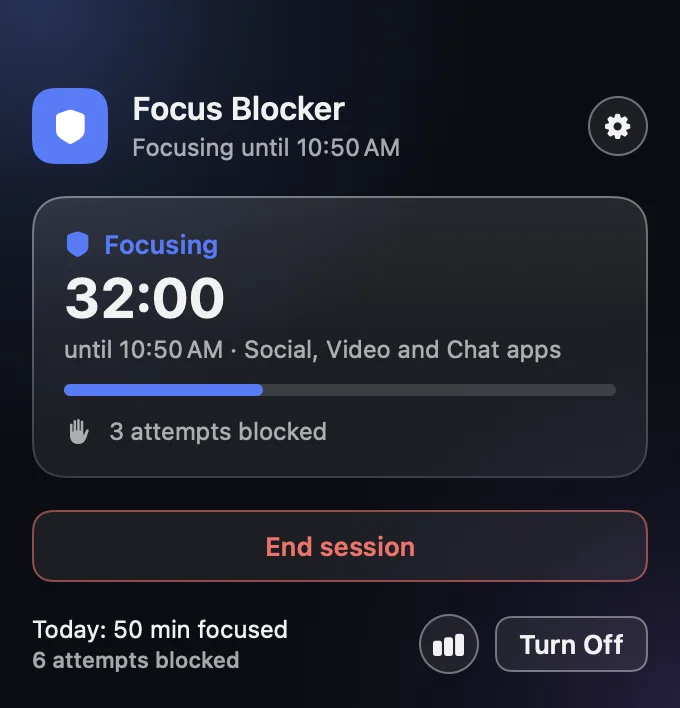
Focus Blocker shuts out the apps and sites that pull you away, for as long as you choose. Break Reminders tell you when to rest your eyes, stretch and drink some water.
- Block chosen apps and sites for a set time
- Schedules, and a hard mode for when you mean it
- Gentle reminders for eyes, posture and water
And more
…and 19 more small tools.
Each one is off until you switch it on, and each one is a tile on the dashboard. Tap any of them to see it.
Pricing
One price. Every tool.
Pay once and keep it. No subscription, no account, and every tool and theme is included.
Tiffin Yours to keep
$49 once
All 29 tools and all 16 themes, on your Mac, with no sign-in.
- Works offline; your settings stay on your Mac
- Apple silicon Macs (M1 or later), macOS 14 Sonoma or later
- 🔒 Secure checkout by Gumroad
- The download link arrives straight away
Setup
From download to your menu bar.
No account and nothing to sign in to. A tool asks macOS for a permission only when you switch it on.
- 1Download
- 2Drag to Applications
- 3Open Anyway, once
Show me, step by step
Tiffin isn't notarised by Apple yet, so macOS asks you to confirm it once:
- Unzip the download and drag Tiffin into your Applications folder.
- Open it. macOS says it can't check the app for malicious software. Click Done.
- Open System Settings → Privacy & Security, scroll down, and click Open Anyway next to Tiffin. Confirm with your password.
- Tiffin's icon appears in the menu bar. You won't be asked again.
Needs a Mac with Apple silicon and macOS 14 Sonoma or later.
Privacy
What Tiffin never does.
Tiffin listens for keys and clicks only so its tools can react, and keeps what it keeps on your Mac. 16 of the 29 tools need no permission at all.
- Asks for an account, an email or a card to use it.
- Connects to the internet. Every tool works offline.
- Records which keys you press. Keyboard Sounds turns a press into a sound and forgets it.
- Sends your clipboard anywhere. Clipboard History lives on your Mac, and you can pause or clear it.
- Turns the camera on behind your back. Mirror uses it only while it's open.
- Sends speech away. Dictate uses the recognition built into macOS, on the Mac.
FAQ
Questions, answered.
How do I open Tiffin?
Does it work on my Mac?
Do I have to use all the tools?
Which permissions does it ask for?
Only the tools that need one ask, and only when you switch them on:
- Accessibility: Cleaning Lock, Clipboard History, Mood Frame, Text Transform, Window Snap, to move windows, paste for you, change selected text and lock the keyboard while you clean it.
- Input Monitoring: Keyboard Sounds, Show Keys, Snippets, to notice key presses so it can play a sound, show the key or expand a snippet; nothing is kept.
- Screen Recording: Copy Text from Screen, Screen Recorder, to record the screen, or read the text in the part you choose.
- Microphone: Dictate, to hear what you say while you hold the key.
- Automation: Focus Blocker, to close distracting sites in your browser during a focus session.
- Camera: Mirror, to show you yourself, only while the mirror is open.